 By 管理员

We’re installing OpenClaw on a Raspberry Pi here. I used a Raspberry Pi 4B with 8GB of RAM and the official OS on it; the steps are pretty much the same on other Linux distros. One thing to keep in mind: there’s a dedicated bypass router on my LAN that handles proxying, so if an update or a download hits network trouble, you’ll need to swap in a domestic software mirror yourself.
First run sudo apt update and sudo apt upgrade to bring the Pi’s software up to date.
Then follow OpenClaw’s official install method. Run this command.
curl -fsSL https://openclaw.ai/install.sh | bash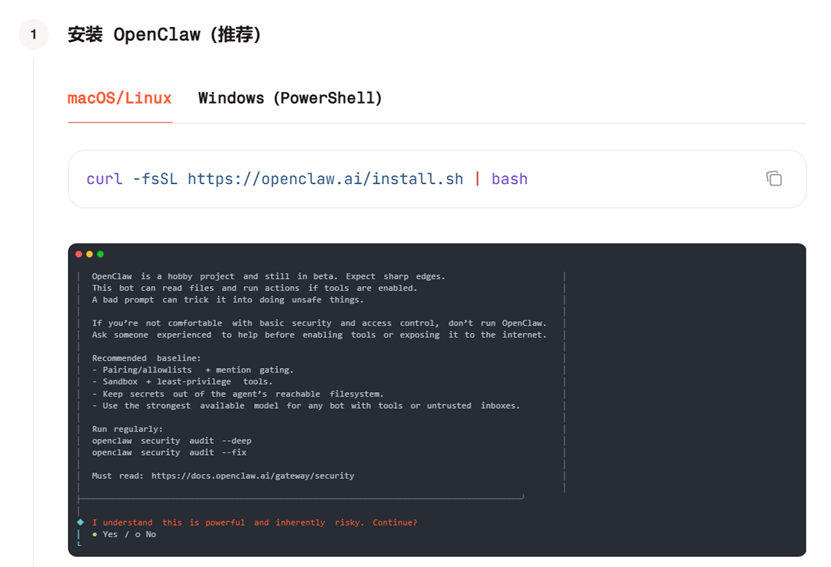
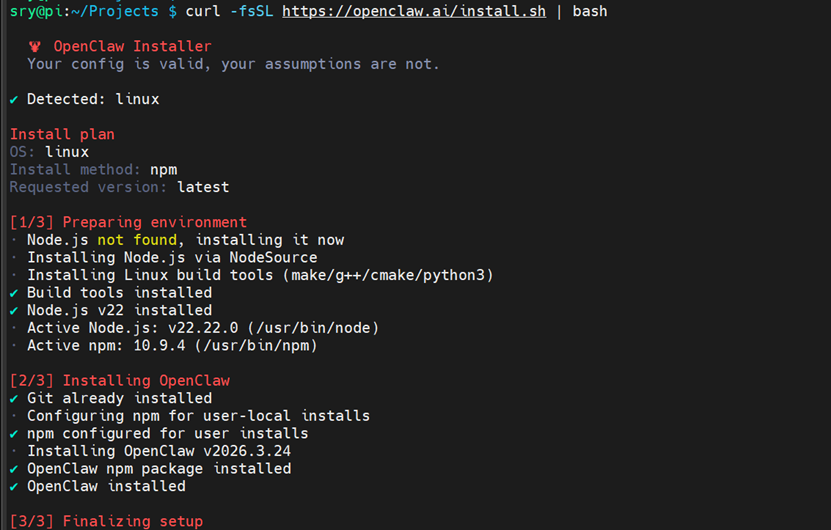
A setup wizard pops up partway through the install. Follow the steps below to get it initialized.
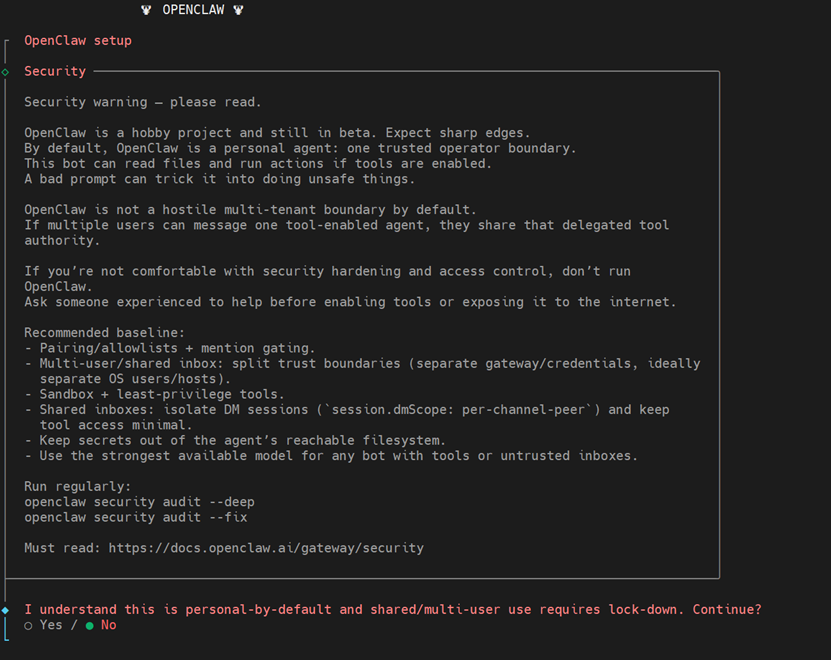
First, accept the security permission notice.
Next we head over to OpenRouter to create an account and an API key. Here’s the thing: we want to grab Xiaomi’s free models before April 2nd, so you have to use the OpenRouter API to get at Xiaomi’s official models!!!!!
I created an API key on the xiaomimimo official site first. It did throw in some top-up credits as a bonus, but those ran out in the end too.
OpenRouter website https://openrouter.ai/
Here’s Xiaomi’s official free-tier terms. Right now mimo-v2-pro and omni are free to use.
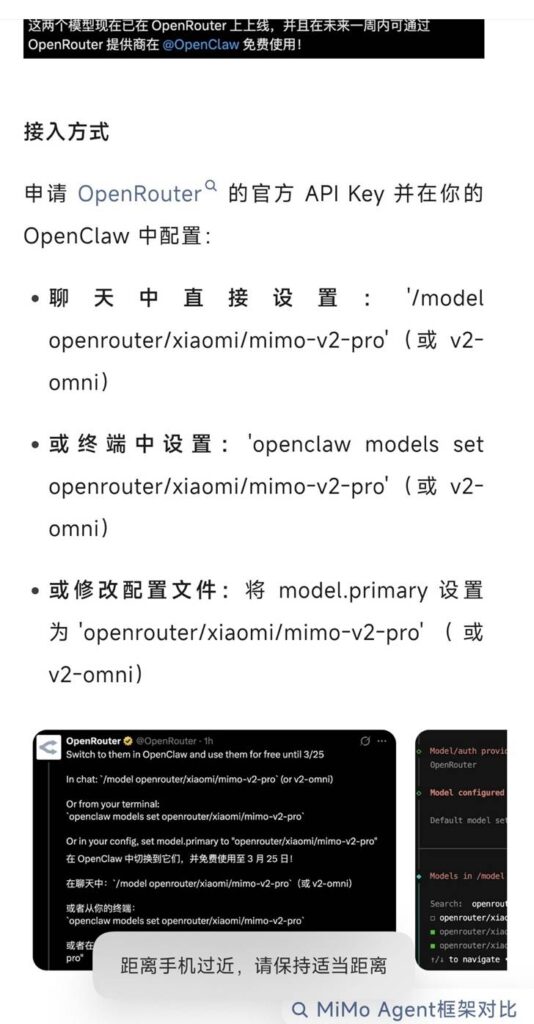
Create the model API key in OpenRouter.
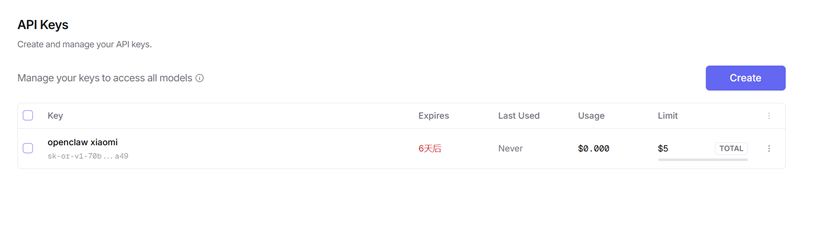
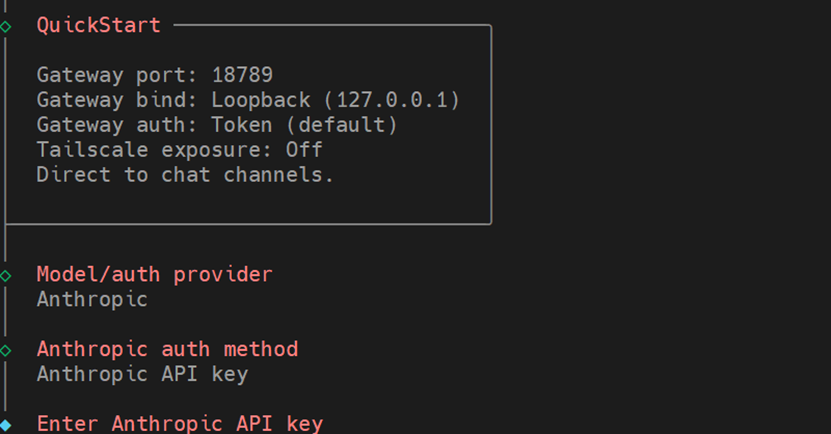
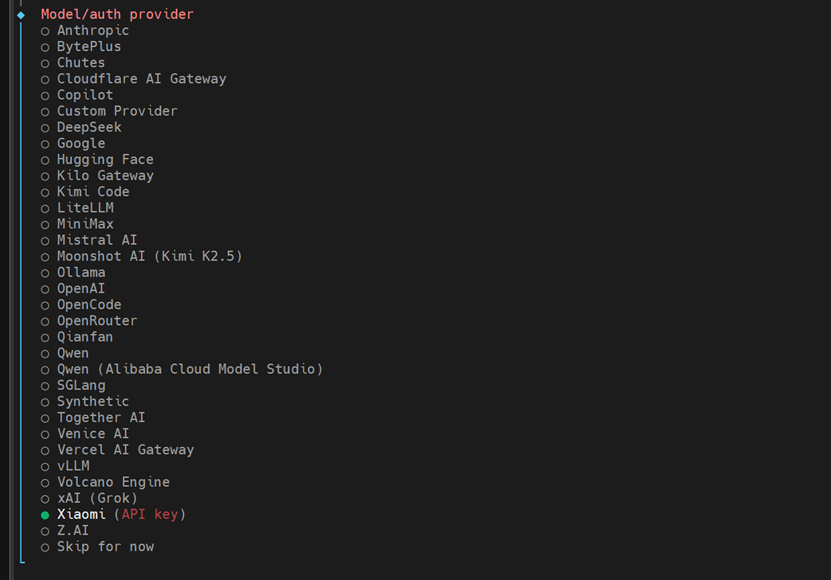
Then keep going with the install, pick the matching model and paste in your API key.
Set provider to OpenRouter and pick Xiaomi’s two free models!!!! The screenshot below is wrong — I picked the wrong one on my first install. Just enter the API key you created yourself and hit enter.
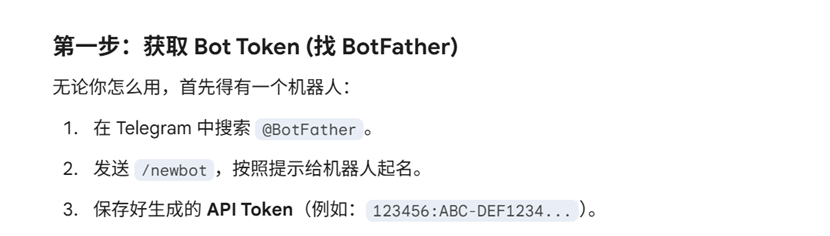
Then we create a Telegram bot to receive OpenClaw’s messages. WeChat, DingTalk, etc. can also be used instead.
Here’s the process of creating the bot. Once the bot API key is ready, just paste it into the config.
Then keep going and pick the default search engine. We’ll just stick with the free default one here.
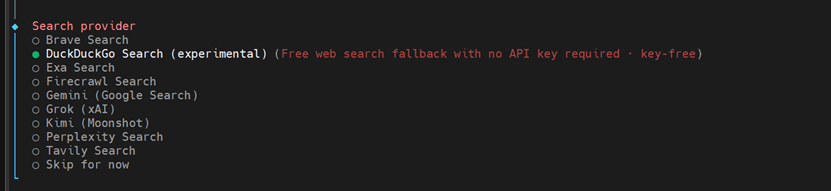
After that you can install skills directly, or just skip it.
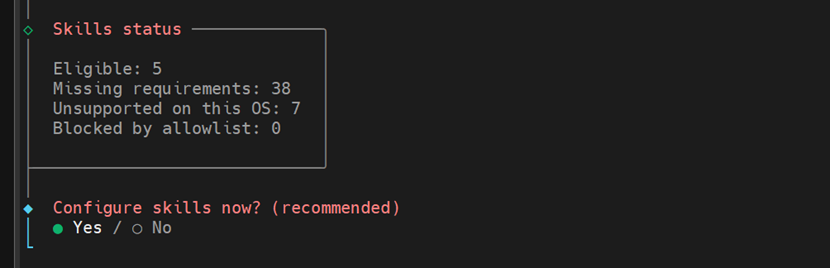
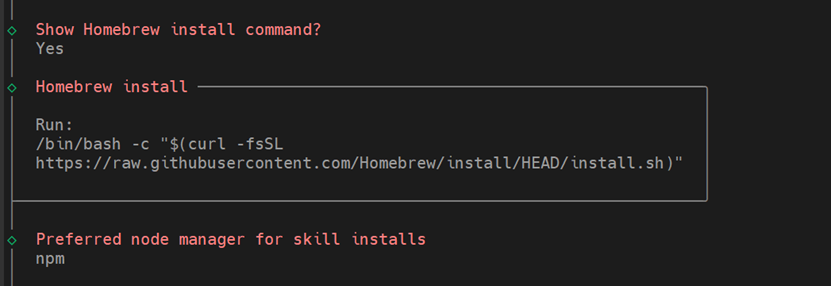
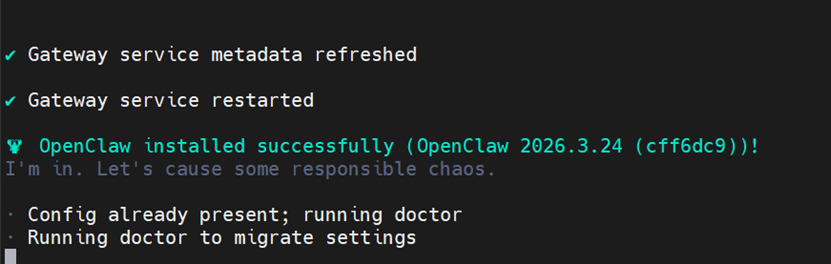
And that’s the install done. But as you can see the config still isn’t quite right — you need to go to the Telegram bot you created yourself and send the messages it asks for to finish the setup.
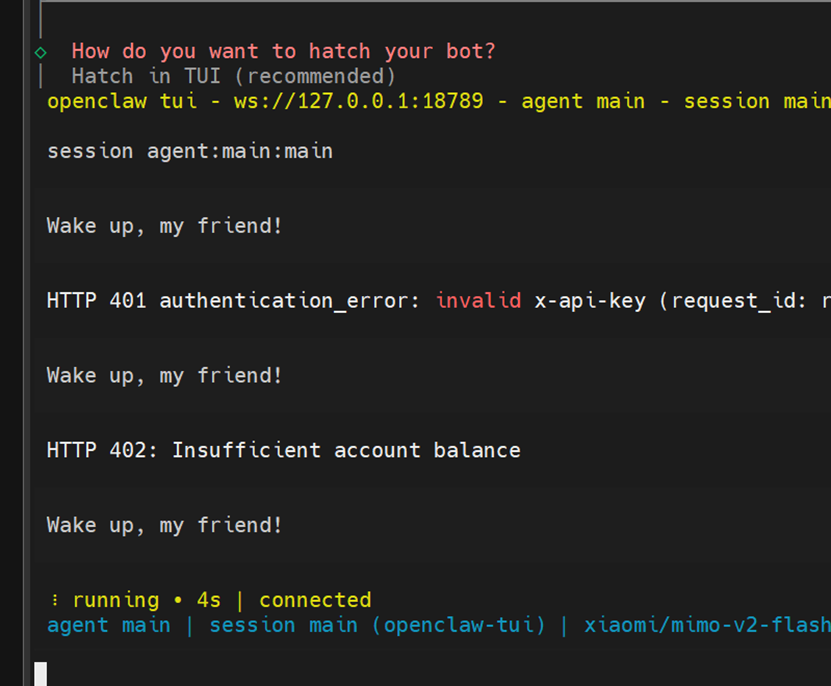
Right after installing, the openclaw command can’t be found in your environment variables.

So I went through the official troubleshooting steps.
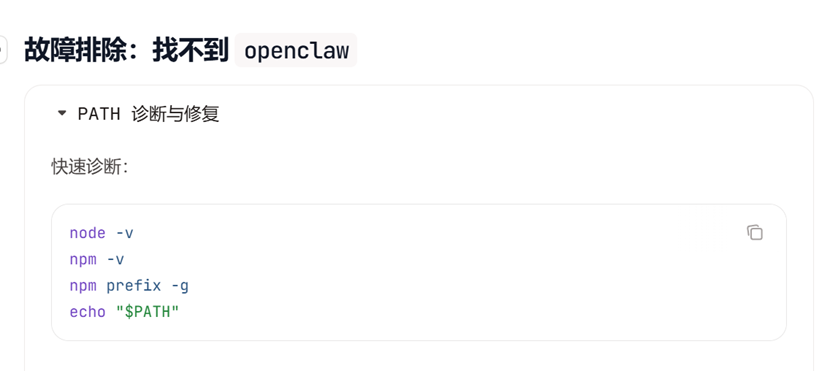
And fixed it based on the hints gemeni gave (likely a typo for Gemini).
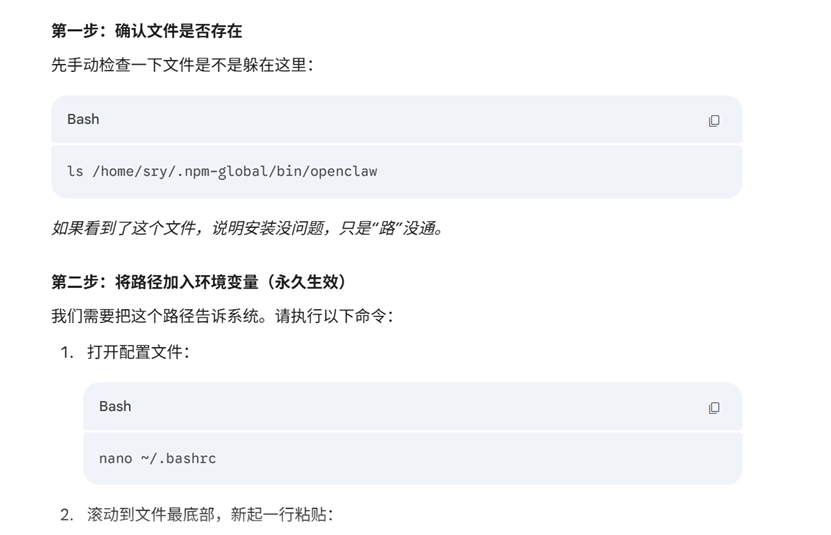
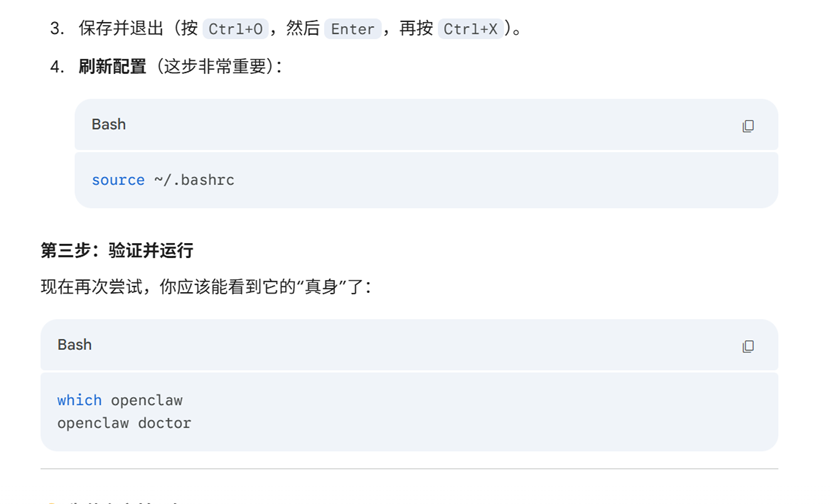
Now the openclaw command runs directly. Run openclaw doctor to diagnose any problems.
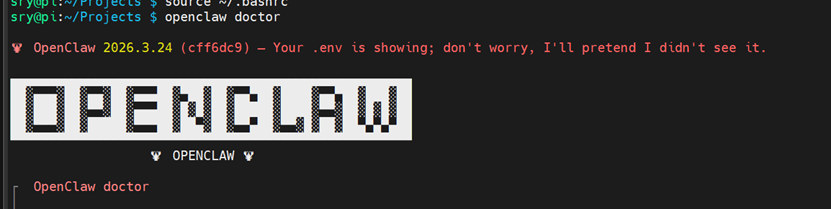
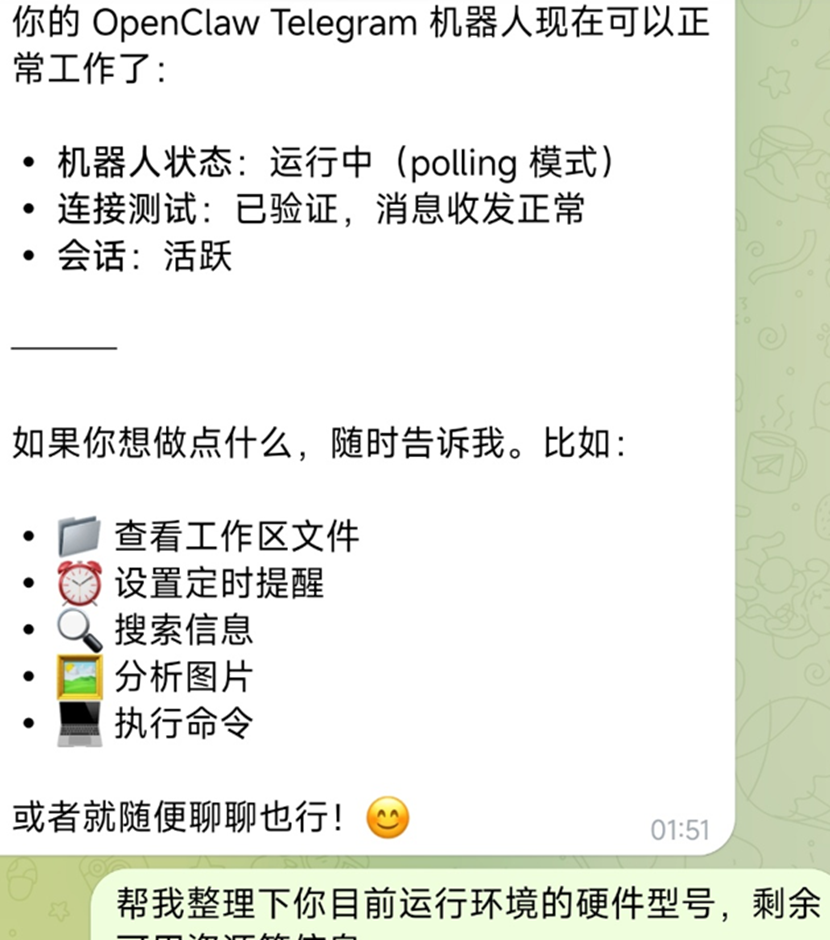
If it’s all clear, run openclaw tui to call the model, chat with it and use skills. You can also talk to it through the Telegram bot.
If there’s anything you want to change after the install, run this to set it up again.
openclaw onboard --install-daemon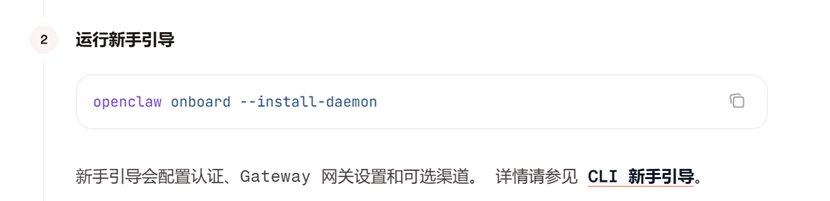
Reference links
https://docs.openclaw.ai/zh-CN/install
https://docs.openclaw.ai/zh-CN/providers/xiaomi
Published on March 29, 2026.